To setup Outlook Express to use your email
address you need to create an account. This will permit you
to send and receive email with our servers.
To begin click the Tools menu and then select
Accounts
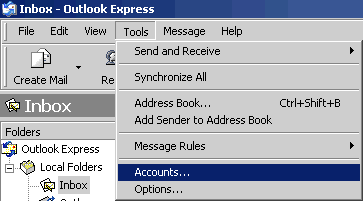
When you've clicked on this line a new window
will appear called 'Internet Accounts'. In this window a box
with four 'tabs' at the top will be displayed. Click on the
third tab labelled 'Mail' to show which accounts you have
set-up for your system.
The picture of the window below does not
have an account displayed. Don't worry if yours doesn't look
exactly like this. Your account should show in the blue area.
If this is the first time you've used the program it's likely
that you won't have any accounts set up yet.
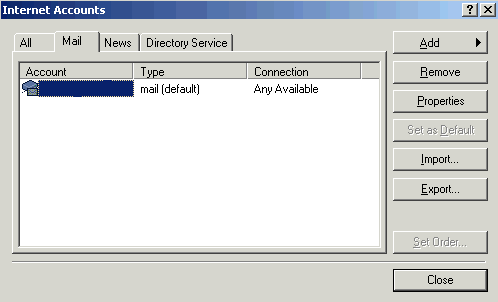
To add an account click on Add and a small box with some options
will pop-up. In this box choose Mai' to enter the wizard.
- First step is to enter your name. Once
you've done this click on 'Next'.
- Now enter your email address and click 'Next'.
- The next window will now ask for your incoming and outgoing
mail server addresses. Your address will be made up with your
domain name. ie. mail.yourdomain.com. The incoming and outgoing
servers will use the same address.
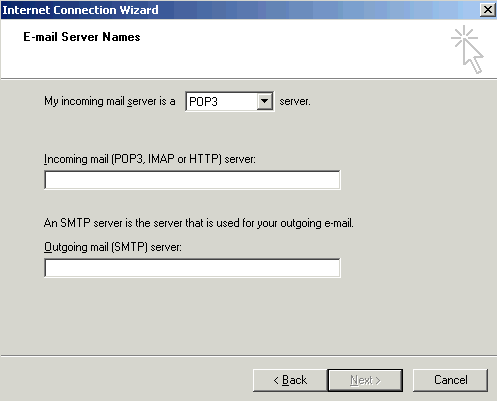
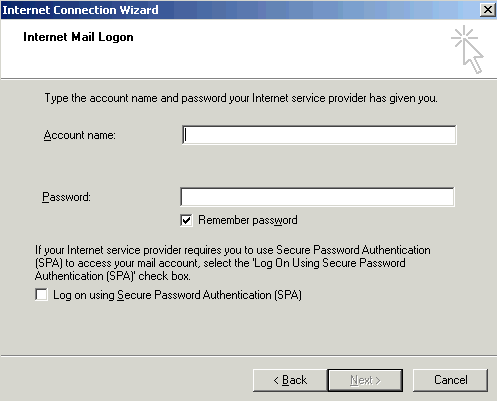
Once you've entered the details click 'Next'. Now the window
will be asking for your account name and password. This will
be the username that we gave to you. ie. name@mydomain.com
and then your normal account password.
Now when you click 'Next' you will be taken
to the finish screen. Click 'Finish'. To allow you to use
your email account fully their is one change left to do. With
the account you just created highlighted in blue click the
'Properties' button. Now click on the 'Servers' tab. Near
the bottom of the window you will see the option for 'My server
requires authentication'. Put a tick in the box next to it.
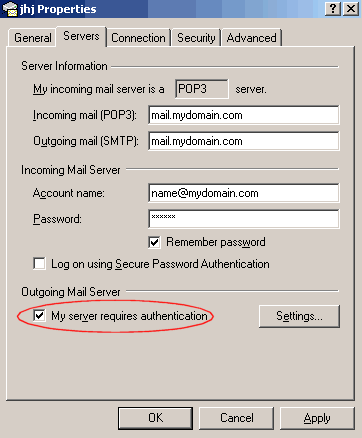
Now click 'OK' and 'Close'. Your email account
is now ready for use!